We were able to complete the launch of your website yesterday.
New Login Page Although you will now go to https://sap-olf.org/sharon to log in, your login credentials are still the same. Statistics Since your website is now live, we have also added the ability to track your website's statistics. Feel free to view the statistics by clicking Statistics. This will give you access to see what devices are being used, how people are finding your website and your top pages/link.
Support Moving Forward As you may have noticed, on your WordPress Dashboard, there is a Diocesan Web Support box with links to help articles that we have written especially for our websites, complete with step-by-step instructions and images. This should help with most of the questions that you may have. If you need more help, simply call Diocesan's Web Support at 877-923-0777 or email us at webdepartment@diocesan.com.
You do also have another 2 weeks from your launch date to call and ask us any questions for free. After those 2 weeks, the paid support will go into effect. Paid support is $50/hr (prorated) and is billed monthly to the parish with each support items (date, amount of time, notes) itemized out.
Canceling Previous Website Host Launching your website DOES NOT cancel your previous web hosting service. Diocesan does, however, suggest that you do not cancel your previous web hosting service until at least 2 business days after your new website launches.
NOTE: Some website hosting companies may package website hosting and domain hosting/renewal together. If this is true for you, you may want to consider transferring your domain over to Diocesan. You may begin this process by emailing us at webdepartment@diocesan.com or calling 877-923-0777.
Other Resources Just in case we didn’t mention it in the training, here are some resources for free, stock images to use throughout your website:
Please let me know if you have any questions and, again, congratulations!
Veronica Alvarado Web Department, Diocesan 877-
FROM THE CLIENTMary Ann Kleinfelder
Hi Veronica~
One, dumb question...cancellation of our previous web host. That refers to only if we had a prior webpage? Also, Diocesan is our domain host, correct?
ma
Mary Ann Kleinfelder Office Manager St. Anthony Church 804 Idaho St. Sharon, PA 16146 Phone: 724-342-7391 Fax: 724-342-3349 Office Hours: Mon.-Thurs. 9am-3pm, Closed Fridays
To: Veronica Alvarado
TO THE CLIENTVeronica Alvarado,Project Manager
Hi Mary Ann,
It's not a dumb question! It took me a second to think, haha, but yes it only refers to people that had a previous website.
Your domain is registered with Diocesan and your website is hosted by Diocesan.
If you have any other questions, you can reply to this email OR send it to our webdepartment@diocesan.com email for support.
Veronica Alvarado
Web Department, Diocesan 877-923-0777
To:
Mary Ann Kleinfelder
FROM THE CLIENTMary Ann Kleinfelder
Hi Veronica~ Can you send me the instructions again as to how to crop the photos when I set a feature image. OMG...I can't find the original email...UGH!!! Thanks!!!
Mary Ann KleinfelderOffice ManagerSt. Anthony Church804 Idaho St.Sharon, PA 16146Phone: 724-342-7391Fax: 724-342-3349Office Hours: Mon.-Thurs. 9am-3pm, Closed Fridays
To: Veronica Alvarado
TO THE CLIENTVeronica Alvarado,Project Manager
Of course, Mary Ann!
Below is the original message. In the future, feel free to email webdepartment@diocesan.com to reach our support email, which is monitored M-F, 8:00 am - 4:30 pm.
Hi Mary Ann,
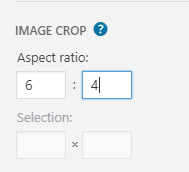
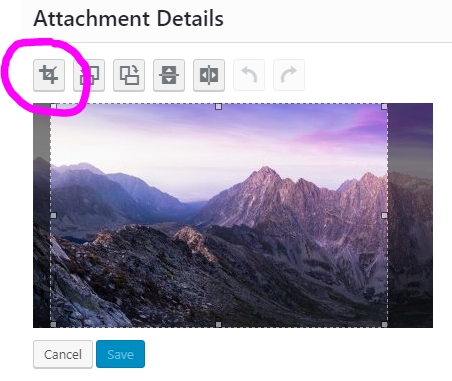
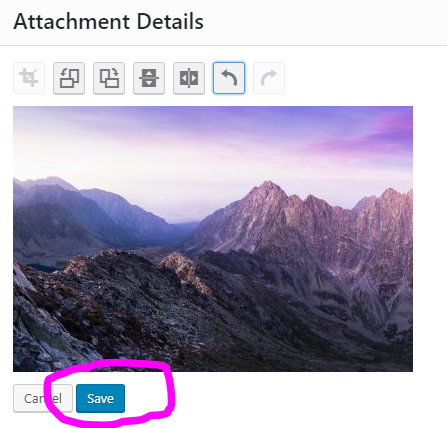
I looked into it and the images on your homepage and on your All News & Events page (https://sap-olf.org/parish-news/) are using a ratio of 6:3. So 600px wide by 300 px tall.
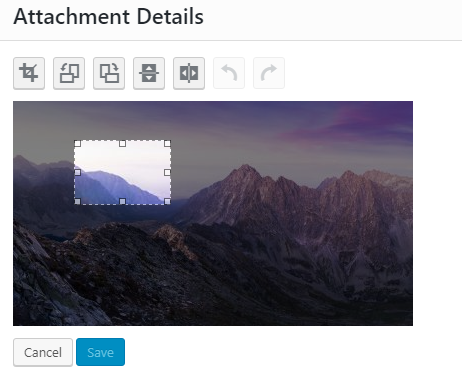
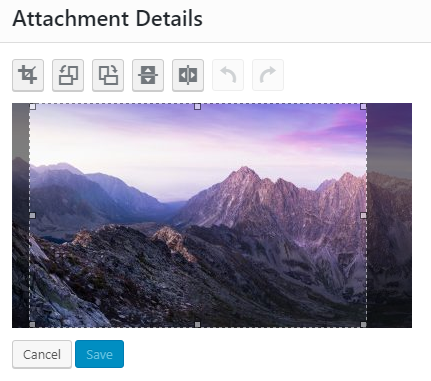
This can actually be done within WordPress following these instructions:
NOTE: Cropping an image in the media library will crop ALL instances of the image on your website. The image can be restored back to the original image, if needed.
Click Add Media.
Select image.
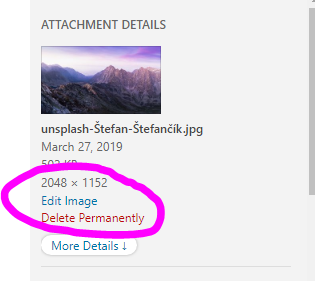
On the right side of the screen, click Edit Image.













 Mary Ann Kleinfelder
 Veronica Alvarado